Power Automate Flows vs Dynamics 365 Plugins
Power Automate vs Plugins is one of the most common and confusing decisions in real Dynamics 365 projects. Choosing the wrong approach can lead to performance issues, failures, and frustrated users.
Should we use Power Automate or write a Plugin?
On the surface, both can automate business logic.
In real-world projects, choosing the wrong approach often leads to performance issues, failures, poor user experience, and difficult maintenance.
This article is based on actual project experience, not theory or marketing slides.
Understanding the Basics
What Is a Power Automate Flow?
Power Automate is a cloud-based workflow automation service.
It allows you to automate processes triggered by events such as:
- Record creation or update
- Scheduled triggers
- User actions
- External system events
Flows are easy to build, easy to monitor, and excellent for integrations and background processing.
What Is a Dynamics 365 Plugin?
A Dynamics 365 plugin is server-side C# code that runs inside the Dataverse execution pipeline.
Plugins can execute:
- Synchronously (blocking the user action)
- Asynchronously (after the transaction)
They provide full transactional control and are best suited for enforcing business rules.
Key Differences (From Real Projects)
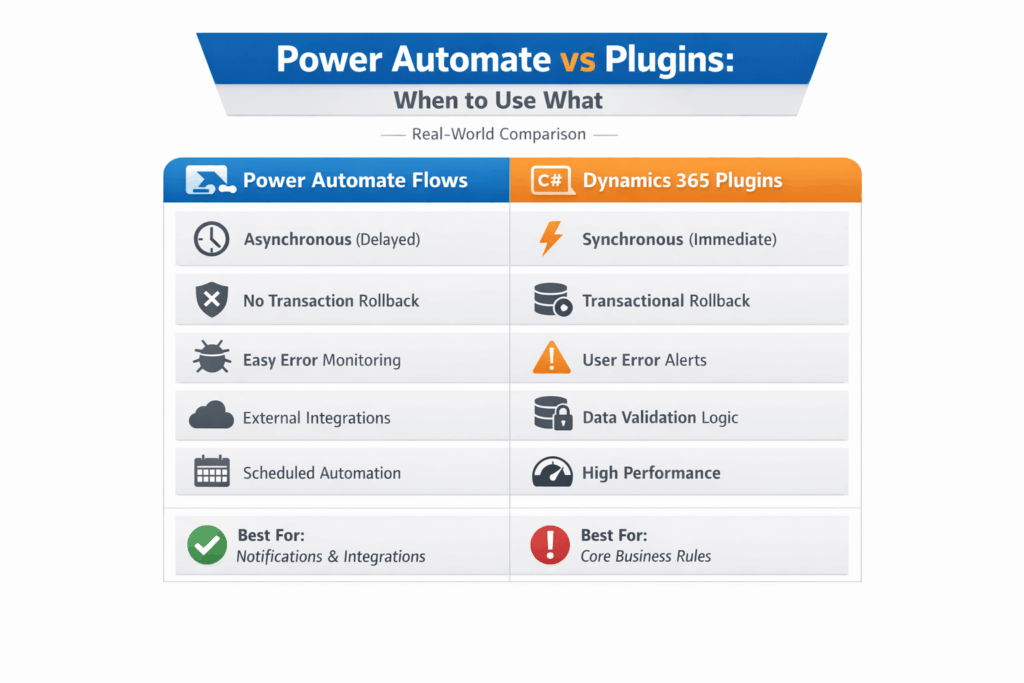
Execution Timing & Performance
Plugins
- Execute immediately
- Can block user actions (synchronous)
- Best for fast, critical logic
Power Automate
- Runs asynchronously in most cases
- Can take seconds or minutes
- Does not block user actions
Rule of thumb
If the user must see the result immediately → Plugin
Transaction Control
Plugins
- Run inside Dataverse transactions
- Can rollback operations
- Ideal for validations and data integrity
Power Automate
- Runs outside the transaction
- Cannot rollback the original operation
Critical validation or enforcement?
Use a Plugin.
Error Handling & User Feedback
Plugins
- Can throw errors directly on the form
- Prevent record save
- Immediate feedback to users
Power Automate
- Errors are logged in run history
- Failures may not be visible to users immediately
- Easier to debug using step-level logs
User-facing validation → Plugin
Background processing → Flow
Complexity & Maintainability
Power Automate
- Low learning curve
- Easy to update
- Functional consultants can manage it
Plugins
- Requires C# development skills
- Needs deployment and versioning
- Must follow proper engineering practices
Simple automation → Flow
Complex logic → Plugin
Real-Life Scenario: Email Notifications (Plugin vs Power Automate)
In one of our real projects, we initially implemented email notifications using a Dynamics 365 plugin.
The logic looked simple:
- Record update occurs
- Plugin sends email notification to users
Initially, everything worked fine.
What started going wrong?
Over time, we noticed intermittent failures in production.
The root cause was clear:
- Email sending sometimes took more than 2 minutes
- Plugin execution exceeded allowed limits
- Transactions started failing
- Users experienced random save errors
This resulted in:
- Poor user experience
- Difficult debugging
- Production instability
Why We Moved Email Logic to Power Automate
We decided to move email notifications out of the plugin and implement them using Power Automate.
This immediately solved multiple problems:
- No strict execution time limits
Power Automate can run longer without impacting user actions. - Clear visibility into failures
We could clearly see: - Which step failed
- What error occurred
- Exactly where it broke
- Better monitoring and retry handling
Built-in run history and retry mechanisms made troubleshooting much easier. - No impact on core business transactions
Even if email sending failed, the main operation succeeded.
Key Lesson from This Experience
Plugins should never be used for long-running or external operations like sending emails or calling external services.
Instead:
- Plugins → Core business logic, validation, data integrity
- Power Automate → Notifications, integrations, background processing
This architectural change significantly improved:
- System stability
- Debugging experience
- Maintainability
When to Use Power Automate (Real Use Cases)
- Email and Teams notifications
- External system integrations
- Scheduled jobs
- Background automation
- Non-critical business logic
When to Use Plugins (Real Use Cases)
- Prevent invalid data entry
- Enforce business rules
- Maintain data integrity
- Performance-critical logic
- Security-sensitive operations
Common Mistakes Seen in Projects
- Using Power Automate for heavy validation logic
- Writing plugins for simple notifications
- Too many flows triggering each other
- No documentation or ownership
Both tools are powerful — misuse causes problems.
Best Practice: Hybrid Architecture
In real enterprise implementations, both tools are used together.
- Plugins handle core business rules
- Power Automate handles automation and integration
This hybrid approach results in:
- Better performance
- Cleaner architecture
- Easier maintenance
Final Recommendation
There is no single correct answer.
Choose based on:
- Performance requirements
- Transaction control needs
- User experience
- Long-term maintenance
Low-code does not replace good engineering —
it works best when combined with it.
At Power Stack Engineering, we focus on real-world Power Platform decisions — not theoretical examples.
More practical, experience-driven articles coming soon.