In the previous articles, we explored:
Now we move to a powerful concept designed for lightweight, record-level collaboration:
Access Teams in Dataverse
Unlike Owner Teams, Access Teams do not own records or have security roles. Instead, they provide dynamic, record-level access using templates.
What Are Access Teams?
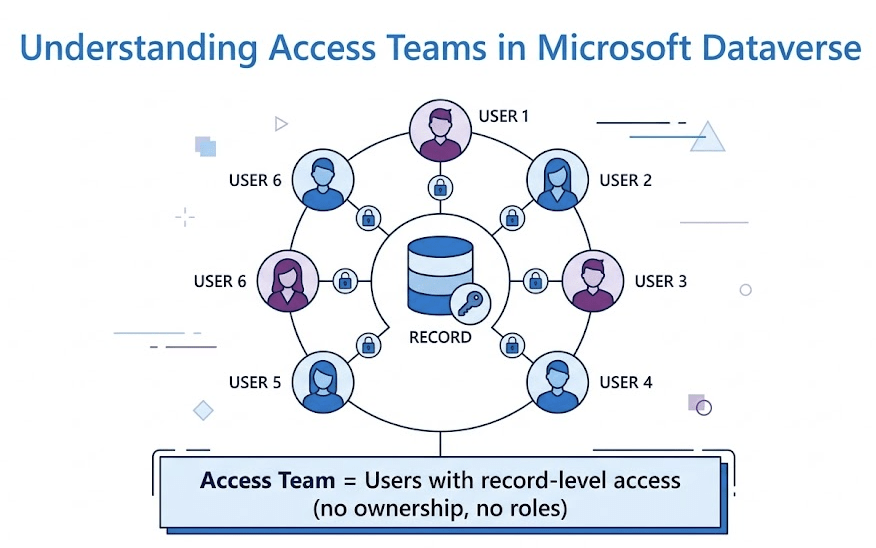
An Access Team is a group of users granted access to a specific record.
Key characteristics:
- No ownership of records
- No security roles
- Access is defined per record
- Lightweight and dynamic
Example:
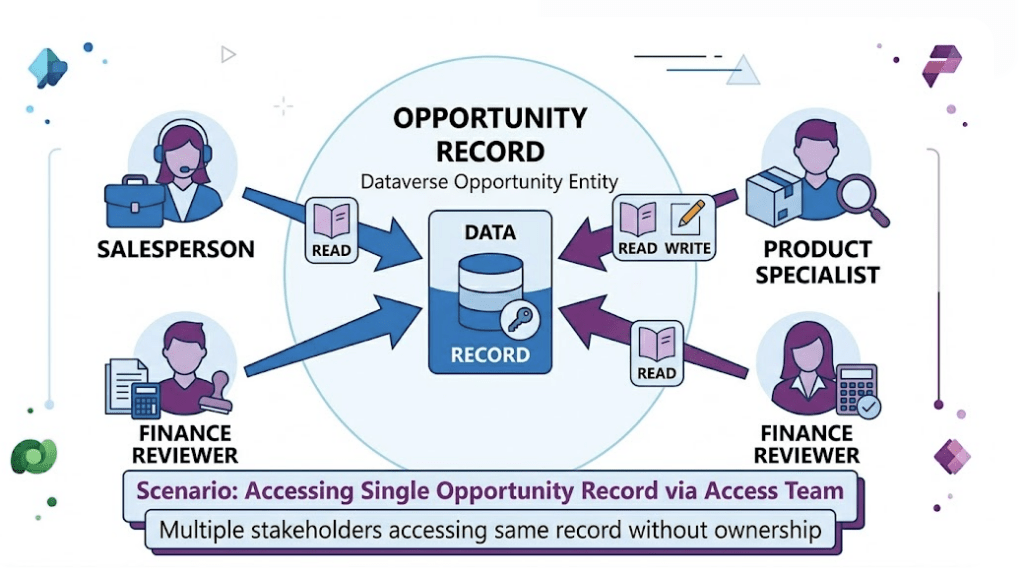
Multiple stakeholders need access to a single Opportunity — but you don’t want to assign ownership or roles.
Use an Access Team.
Owner Teams vs Access Teams
Owner Teams vs Access Teams
| Feature | Owner Team | Access Team |
|---|---|---|
| Can own records | ✔ | ❌ |
| Has security roles | ✔ | ❌ |
| Scope | Organization / BU | Record-level |
| Setup complexity | Medium | Low |
| Use case | Long-term access | Temporary / dynamic access |
What Is an Access Team Template?
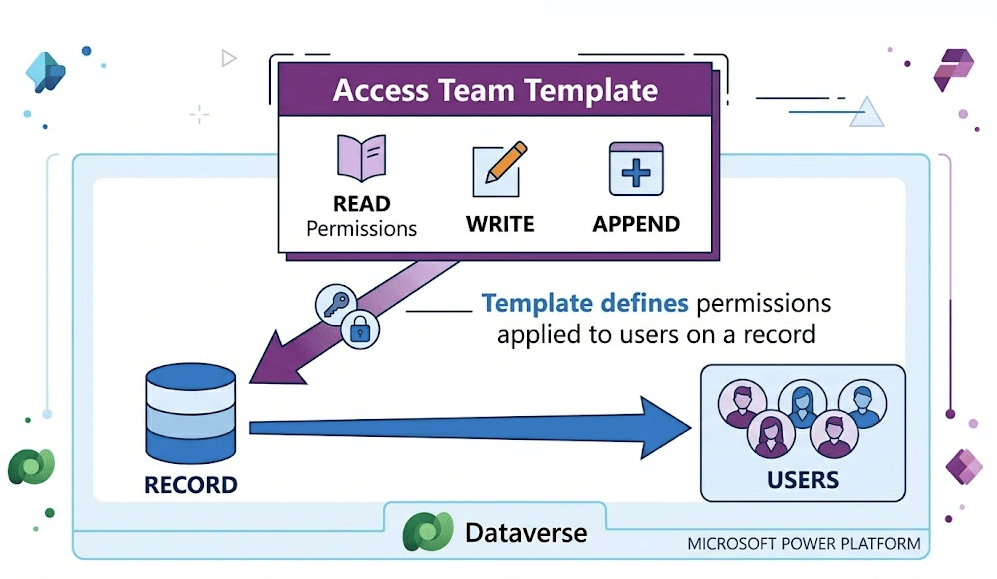
An Access Team Template defines:
- Which table it applies to
- What permissions are granted
It acts as the blueprint for Access Teams.
Example Permissions
You can define:
- Read
- Write
- Append
- Append To
These permissions are applied when users are added to the Access Team.
Enabling Access Teams on a Table
Before creating an Access Team Template, you must first enable Access Teams on the table (entity).
Access Teams are not available by default for all tables. They need to be explicitly enabled so that Dataverse can support record-level access using templates.
Steps to Enable Access Teams
- Go to Power Apps Maker Portal
- Open the required Table (e.g., Opportunity)
- Navigate to Settings
- Enable the option:
“Have an access team” (or similar setting depending on UI version)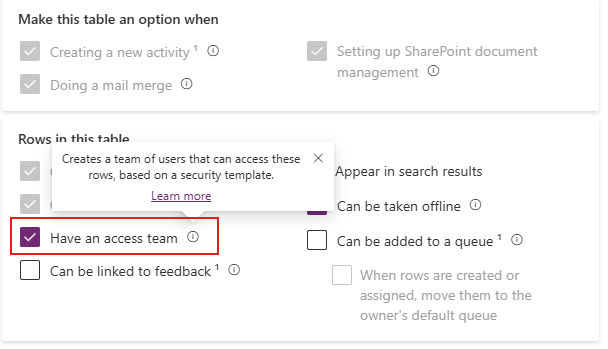
- Save the changes
Creating an Access Team Template
Access Team Templates are defined at the table level and are used to configure record-level permissions for Access Teams.
There are two ways to create them, depending on your interface.
Method 1 — Using Advanced Settings (Recommended)
- Navigate to Advanced Settings
- Go to:
Settings → Security → Access Team Templates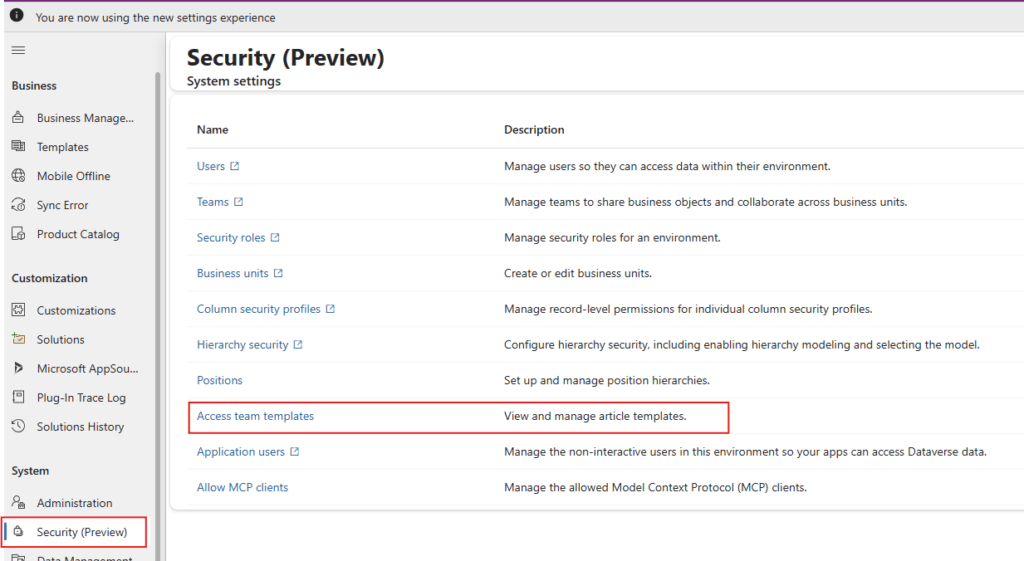
- Click New
- Configure:
- Template Name
- Table (Entity)
- Permissions (Read, Write, Append, etc.)
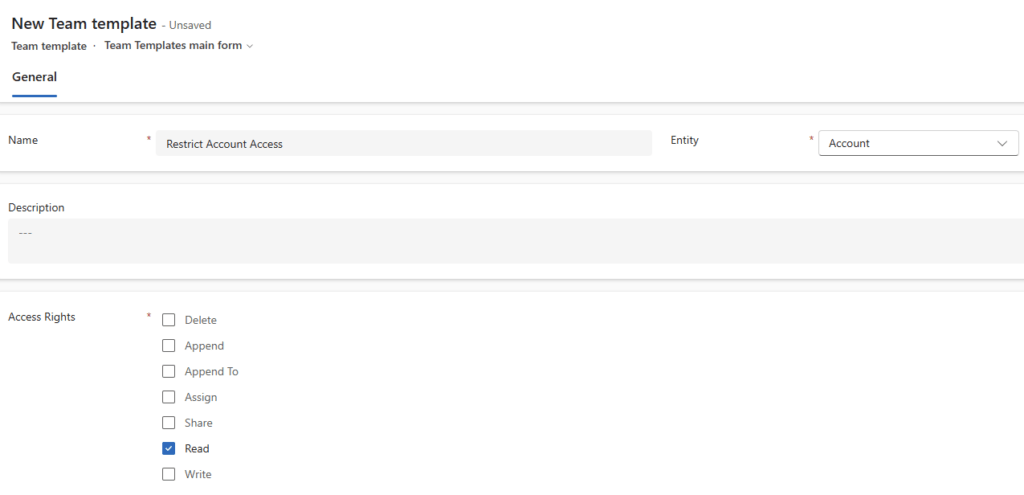
- Save
Method 2 — Using Power Apps Maker Portal (If Available)
In some environments, Access Team Templates can also be configured directly from the table.
- Go to Power Apps Maker Portal
- Open the desired Table
- Navigate to Settings → Access Team Templates
- Create and configure the template
Important Note
The Advanced Settings method is the most reliable and works across all environments.
Adding Access Team Template to the Form
Adding Access Team Template to the Form
After creating an Access Team Template, you must add it to the form so users can manage access directly on the record.
Steps to Add Access Team to Form
- Open Power Apps Maker Portal
- Navigate to the required Table (e.g., Opportunity)
- Go to Forms
- Open the Main Form
- In the form designer, click + Add component (or Insert → Subgrid in classic editor)
- Select Subgrid
- In Subgrid properties, configure:
- Default View: Associated Record Team Member
- Table: Select Users table
- Team Template: select the template we created
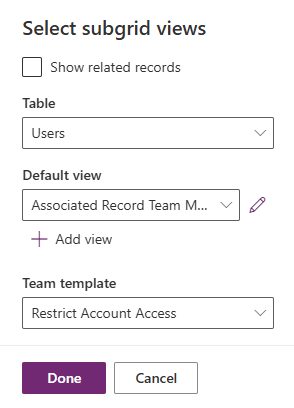
- Click Done / OK
- Click Save & Publish
Using Access Teams on Records
Once the template is created:
- A subgrid appears on the form
- Users can be added or removed dynamically
Steps:
- Open a record (e.g., Opportunity)
- Locate the Access Team subgrid
- Click Add User
- Select users
- Save
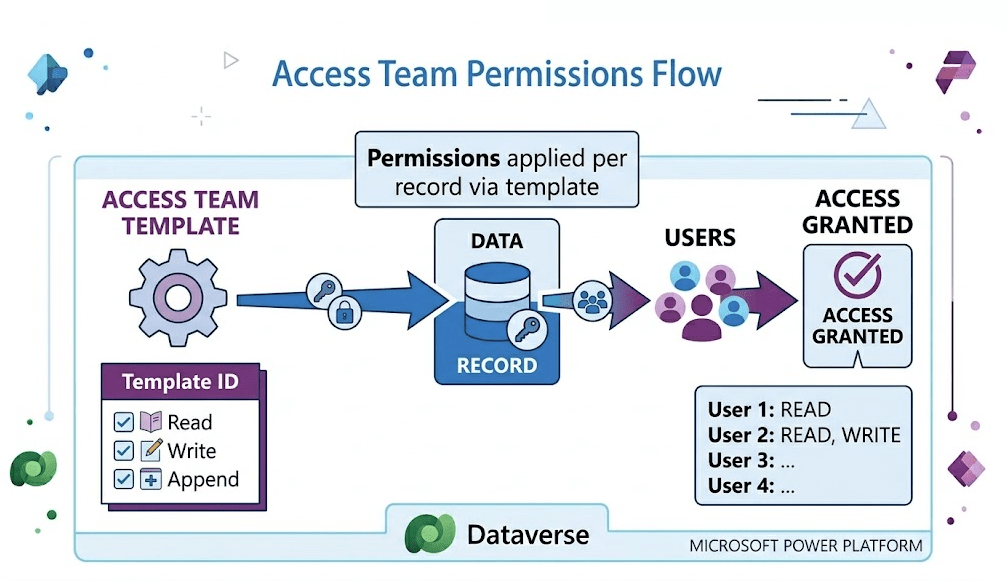
How Access Flows in Access Teams
This is the most important concept.
Flow:
Access Team Template → Record → Users → Access Granted
This means:
- Template defines permissions
- Users added to record get those permissions
- Access is limited to that specific record
Real-World Use Cases
Access Teams are ideal for temporary or contextual access.
Scenario 1 – Opportunity Stakeholders
- Sales rep owns opportunity
- Product specialist needs access
- Finance reviewer needs access
Use Access Team
Scenario 2 – Case Collaboration
- Support agent owns case
- SME joins temporarily
Use Access Team
Scenario 3 — Project-Based Access
- Temporary project team
- Access needed only for project duration
Use Access Team
When to Use Access Teams
Use Access Teams when:
✔ Access is record-specific
✔ No need for ownership
✔ No need for security roles
✔ Users change frequently
When NOT to Use Access Teams
Avoid when:
❌ Long-term access required
❌ Role-based access needed
❌ Ownership required
Use Owner Teams instead
Common Mistakes
❌ Confusing Access Teams with Owner Teams
❌ Expecting roles to work with Access Teams
❌ Not using templates properly
❌ Overusing Access Teams for permanent access
Best Practices
✔ Keep templates simple
✔ Use minimal permissions
✔ Use for dynamic access scenarios
✔ Combine with proper security roles
✔ Monitor usage
Think About It
Do users need temporary access to records?
Are you using Owner Teams where Access Teams would be better?
Are your access patterns dynamic or static?
Conclusion
Access Teams provide a flexible and lightweight way to manage record-level access in Dataverse.
They allow you to:
- Avoid unnecessary ownership changes
- Enable collaboration
- Maintain clean security design
When used correctly, Access Teams significantly simplify real-world scenarios where access needs to be dynamic and temporary.