In the previous articles, we explored:
- Business Units
- Security Roles
- Assigning Roles
- Record Ownership
- Teams (Owner & Access)
Now we move one level deeper into data protection:
Field-Level Security (FLS)
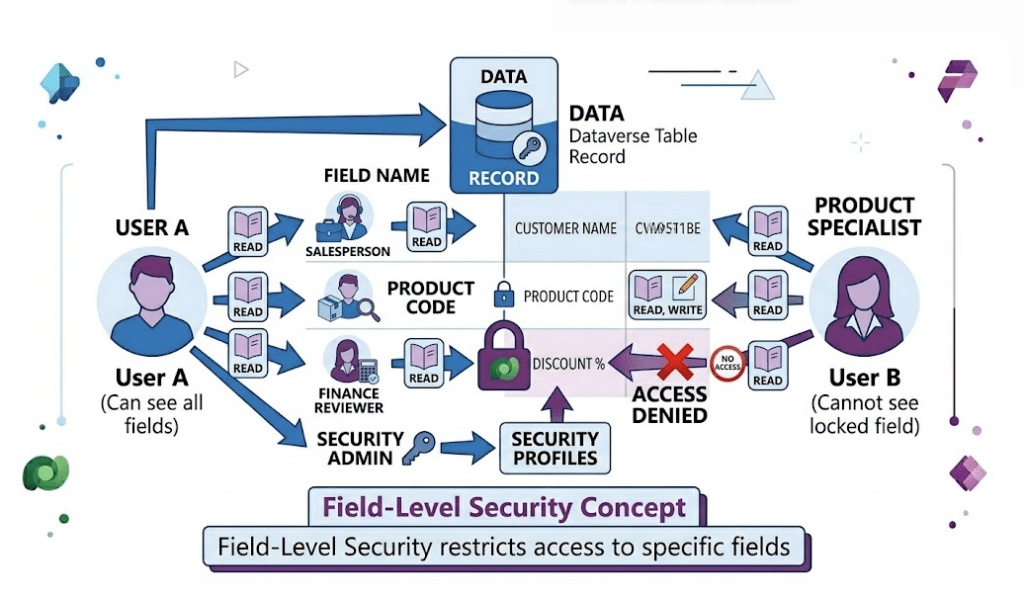
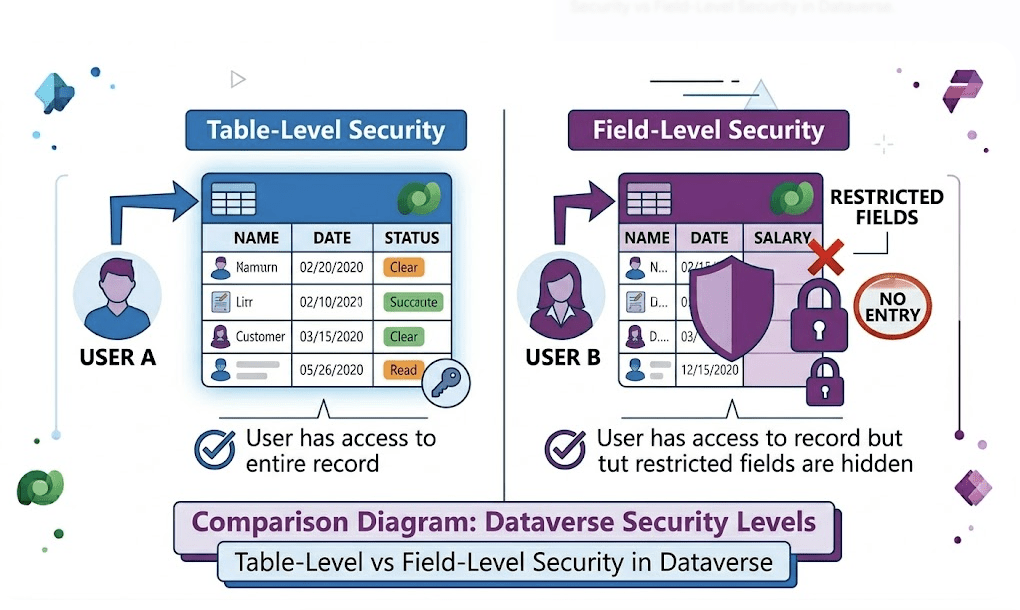
While security roles control access at the table level, Field-Level Security allows you to control access at the column (field) level.
This is critical when dealing with sensitive data.
What Is Field-Level Security?
Field-Level Security allows you to:
- Restrict access to specific fields
- Control who can:
- Read
- Update
- Create values
Even if a user has access to the record, they may not see certain fields.
Why Field-Level Security Is Important
In real-world applications, not all data should be visible to everyone.
Examples:
- Salary information
- Personal identification numbers
- Financial data
- Internal notes
This is where FLS becomes essential.
How Field-Level Security Works
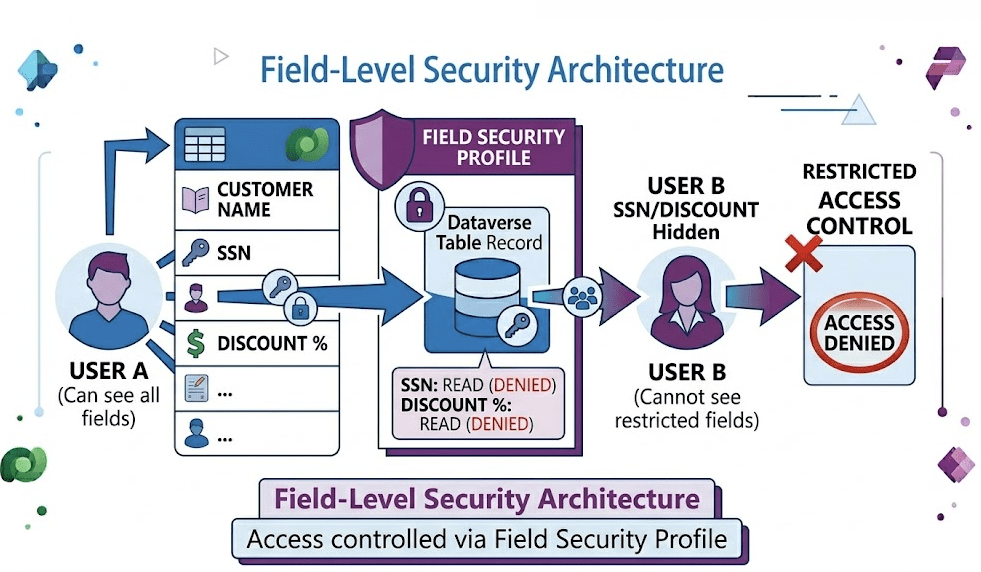
FLS is based on two components:
Field Security Enabled Column
Field Security Profile
Flow:
Field → Security Profile → User → Access Control
Step 1 – Enable Field Security on a Column
Field-Level Security must be enabled on individual columns.
Steps:
- Go to Power Apps Maker Portal
- Open the required Table
- Select the Column
- Enable:
Column Security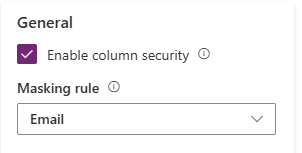
- Enable:
- Save and Publish
Step 2 — Create a Field Security Profile
A Field Security Profile defines who can access the secured field.
Steps:
- Go to Advanced Settings
- Navigate to:
Security → Field Security Profiles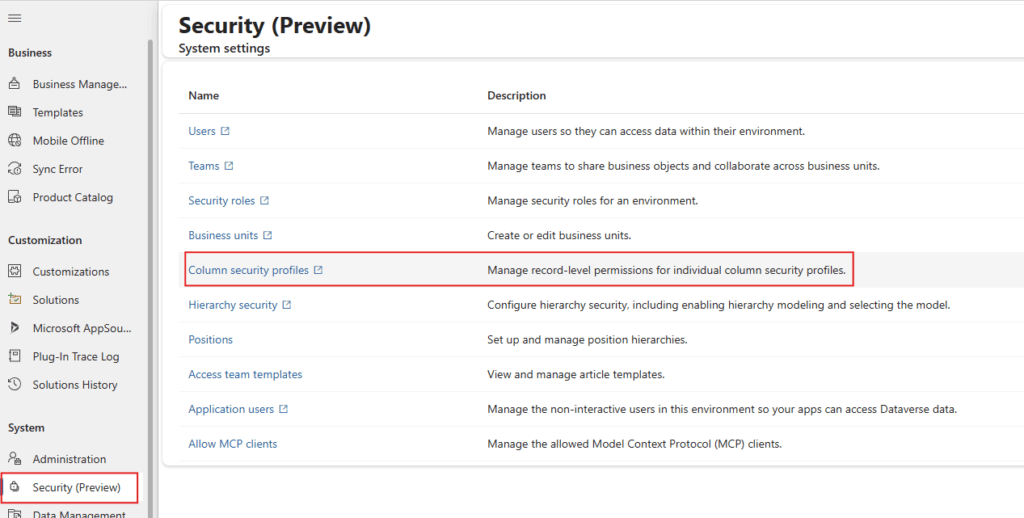
- Click New
- Enter:
- Name
- Description
- Save
Step 3 — Configure Field Permissions
Now assign permissions to fields inside the profile.
Permissions Available:
- Read
- Create
- Update
Step 4 — Add Users or Teams to Profile
Assign the profile to users or teams.
Steps:
- Open Field Security Profile
- Add:
- Users
- Teams
- Save
How Field-Level Security Affects Users
Let’s understand behavior:
| Scenario | Result |
|---|---|
| User has access + FLS enabled | Field visible |
| User has record access but no FLS | Field hidden |
| User lacks permission | Field masked or inaccessible |
Important Behavior
Field-Level Security overrides normal access
Even if:
- User has full access via role
- Record is owned by them
They still cannot see secured fields without profile access
Real-World Example
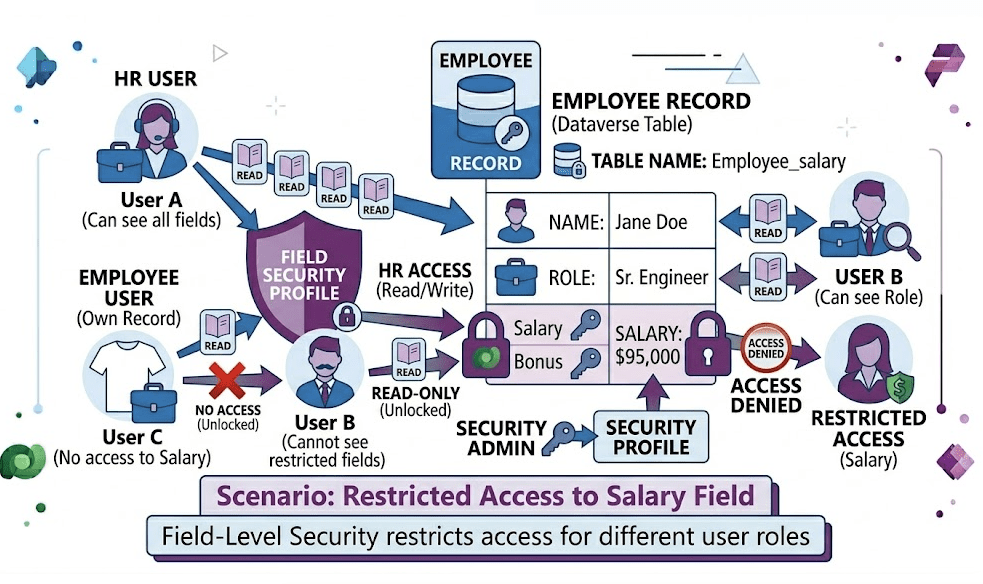
Scenario — Salary Field
- HR team → Full access
- Managers → Read-only
- Employees → No access
Achieved using Field Security Profiles
Scenario — Sensitive Notes
- Only leadership team can view
Common Mistakes
❌ Forgetting to enable field security on column
❌ Not assigning profile to users
❌ Assuming security roles control fields
❌ Overusing FLS unnecessarily
Best Practices
✔ Use FLS only for sensitive data
✔ Keep profiles simple
✔ Assign via Teams where possible
✔ Document secured fields
✔ Test with different users
Think About It
Do you have sensitive fields in your system?
Are you exposing confidential data unintentionally?
Can FLS improve your data security?
Conclusion
Field-Level Security adds a powerful layer of protection in Dataverse.
It ensures:
- Sensitive data is protected
- Access is controlled at a granular level
- Security model remains scalable
When combined with roles, teams, and ownership, FLS completes your data protection strategy.
Next in the Series
In the next article, we’ll explore:
Record Sharing in Dataverse: Granting Access Without Changing Ownership