When developing plugins in Dynamics 365, understanding the difference between a Sync vs Async Plugin is crucial for system performance, user experience, and transaction reliability. Many developers struggle with choosing the right type of plugin, but real-world scenarios make the decision much clearer.
In this post, we’ll break down Sync vs Async plugins using real-world scenarios, explain transaction rollback behavior, and help you confidently decide which one to use.
High-Level Comparison: Sync vs Async Plugins in Dynamics 365
| Feature | Sync Plugin | Async Plugin |
|---|---|---|
| Execution Mode | Synchronous | Asynchronous |
| Execution Timing | Executes immediately during the request | Executes later via system jobs |
| Runs Inside Database Transaction | Yes | No |
| User Waits for Execution | Yes | No |
| Can Block Record Save / Update | Yes | No |
| Rollback on Failure | Yes (entire transaction rolled back) | No (main operation already committed) |
| Performance Impact | High if logic is heavy | Minimal impact on user |
| Error Visibility to User | Immediate error message | Error visible in System Jobs |
| Best Used When | Business rules must be enforced | Background processing required |

Real-World Scenario – Synchronous Plugin
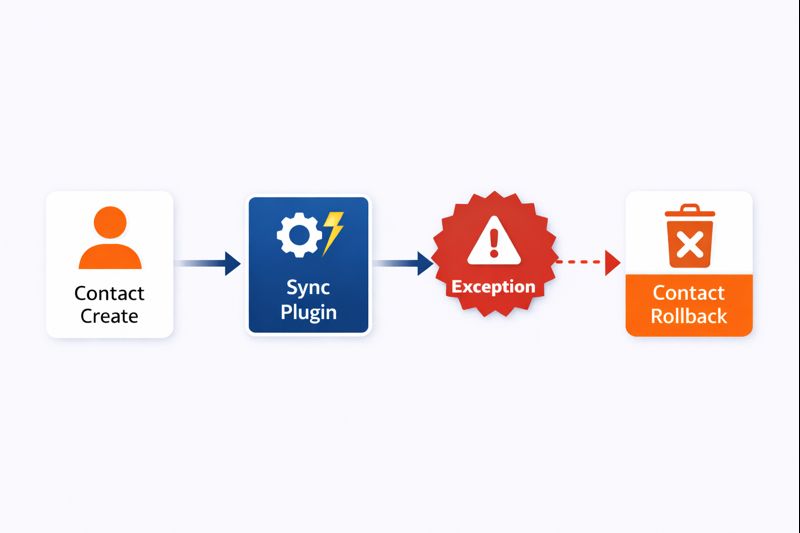
Scenario 1: Preventing Duplicate Contact Creation (Sync Plugin)
In many real-world CRM implementations, preventing duplicate records is critical.
For example, when a user creates a Contact, the system must ensure that a contact with the same email already does not exist.
In this case:
- The user must immediately know if the operation failed
- The record must not be saved if validation fails
This makes a Synchronous plugin the correct choice.
Why Sync Works Best Here
- Executes inside the same database transaction
- Can throw an exception
- Entire transaction is rolled back
- User receives instant feedback
Real-World Scenario – Asynchronous Plugin
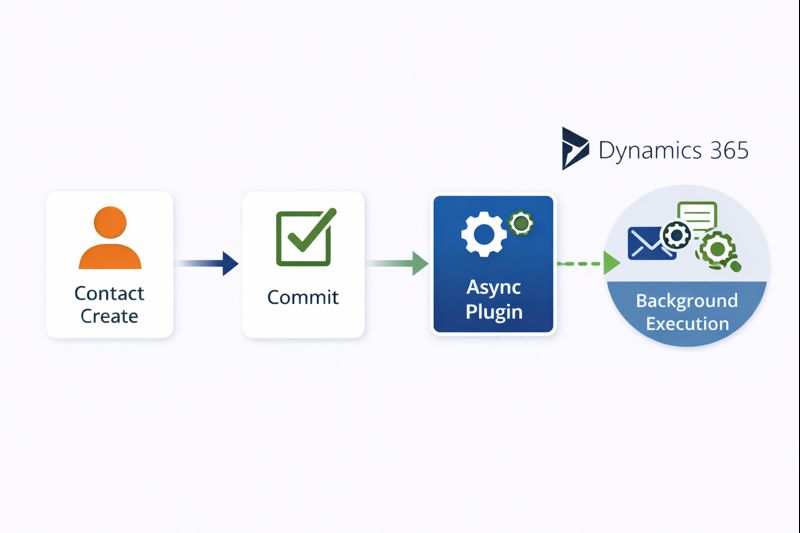
Scenario 2: Creating Related Case Record (Async Plugin)
In another scenario, when a Contact is created, we may want to:
- Create a related Case
- Send notifications
- Perform background updates
These actions:
- Are not critical to the main save operation
- Should not block the user
Here, an Asynchronous plugin is the better choice.
Why Async Works Best Here
- Runs after the main transaction is committed
- Does not impact user experience
- Can handle longer-running operations
- Failures do not affect the original record
Transaction & Rollback Behavior
What Happens When a Plugin Fails?
Understanding rollback behavior is critical.
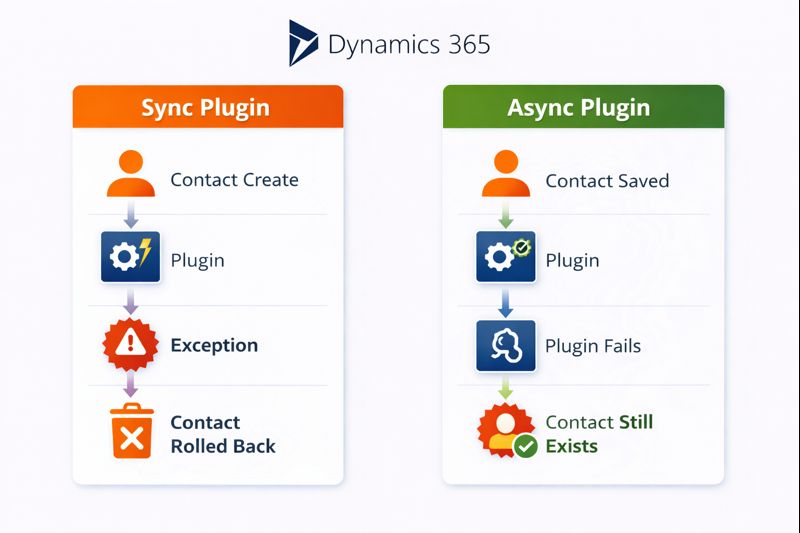
Sync Plugin Failure
- Runs inside the transaction
- Exception causes full rollback
- Record is not created or updated
Async Plugin Failure
- Runs outside transaction
- Main operation already committed
- Failure is logged in System Jobs
- Record remains saved
This difference alone often decides which plugin type should be used.
How to Decide – Sync or Async?
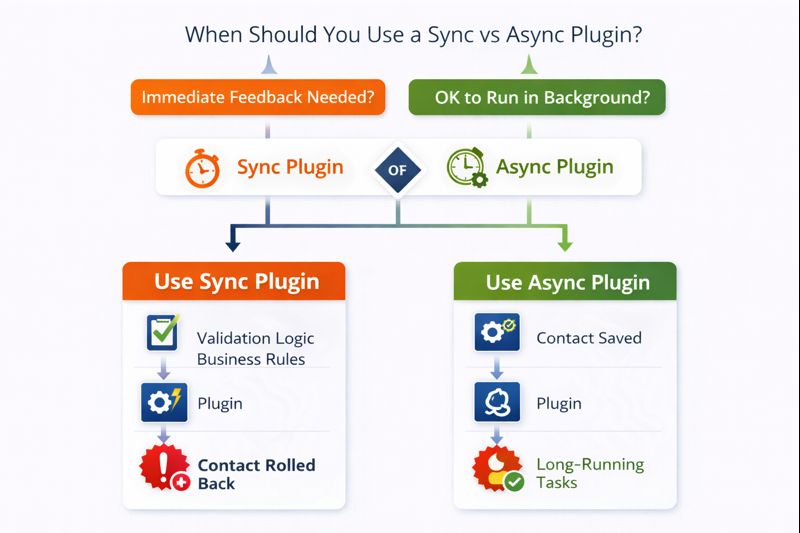
Decision Checklist
Ask yourself:
- Does the user need immediate feedback?
- Should the operation be blocked on failure?
- Is this logic critical to data integrity?
If YES → Sync Plugin
If NO → Async Plugin
Conclusion
Choosing between a Sync and Async plugin isn’t just about preference, it’s about ensuring transaction safety, optimizing performance, and delivering a smooth user experience.
Key Takeaways:
- Sync plugins are ideal for validations, enforcing business rules, and scenarios where immediate feedback is required.
- Async plugins work best for background processing, long-running tasks, integrations, and situations where timing is less critical.
Understanding the strengths of each approach helps you design Dynamics 365 solutions that are both reliable and efficient, reducing errors and improving overall system performance.