This article explains how Advanced Search Dynamics 365 works, when to use it, and how developers can extract the generated FetchXML.
In this post, we’ll focus on Advanced Search only and explain:
- What it is
- How it works
- When you should use it
What Is Advanced Search in Dynamics 365?
Advanced Search is a UI-based query builder available inside model-driven apps.
It allows users to:
- Build queries visually
- Apply filters and conditions
- Choose columns
- Save queries as personal views
Behind the scenes, Advanced Search generates FetchXML.
Advanced Search is a UI layer built on top of FetchXML, it is not a search engine.
Prerequisites
To use Advanced Search, you need:
- A model-driven app (Sales Hub, Customer Service, or a custom app)
- Dataverse tables added to the app
- Appropriate security permissions
A Dataverse-only environment without an app will not show Advanced Search.
How Advanced Search Works (Behind the Scenes)
When you build a query using Advanced Search:
- You select a table
- You define conditions
- You choose columns
- The UI converts your selections into FetchXML
- Dataverse executes the FetchXML and returns results
Once the query is built, the generated FetchXML can be downloaded or inspected by saving the Advanced Search as a view and extracting it using tools such as XrmToolBox or the Web API.
This makes Advanced Search a useful way for developers to visually build and understand FetchXML queries.
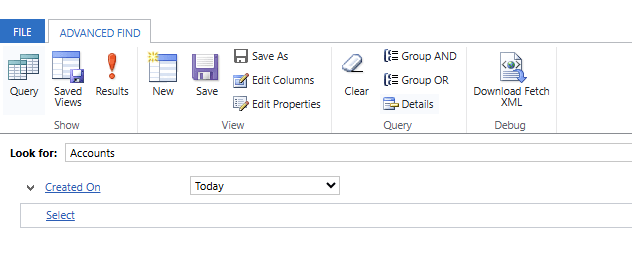
Example: Creating an Advanced Search Query and Extracting FetchXML (Account)
Let’s look at a simple, real example using the Account table.
Example Requirement
Find all active Accounts where the Account Name contains “Tech”.
Step 1: Build the Query in Advanced Search
- Open Advanced Search
- Set Look for:
Accounts - Add conditions:
- Account Name → Contains →
Tech - Status → Equals →
Active
- Account Name → Contains →
- Choose columns (optional)
- Click Results to verify the data
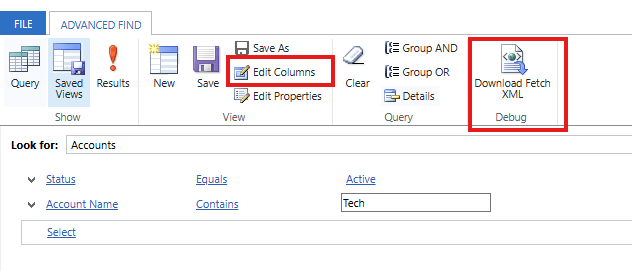
At this point, Advanced Search has generated a FetchXML query internally.
Step 2: Download / Inspect the Generated FetchXML
Once the result looks ok, we can click on Download FetchXML
A simplified version of the generated FetchXML will look similar to:
<fetch version="1.0" output-format="xml-platform" mapping="logical" distinct="false">
  <entity name="account">
    <attribute name="name" />
    <attribute name="primarycontactid" />
    <attribute name="telephone1" />
    <attribute name="accountid" />
    <order attribute="name" descending="false" />
    <filter type="and">
      <condition attribute="statecode" operator="eq" value="0" />
      <condition attribute="name" operator="like" value="%Tech%" />
    </filter>
  </entity>
</fetch>
What Advanced Search Is Good At
Advanced Search is best suited for:
- Ad-hoc data analysis
- Creating personal views
- Visualizing FetchXML logic
- Allowing non-developers to query data
Limitations of Advanced Search
Advanced Search is not suitable for:
- Full-text or relevance-based search
- Backend integrations
- High-performance or bulk querying
- Complex aggregations
For these cases, use:
- Dataverse Search
- FetchXML
- Web API queries
Conclusion
Advanced Search is a precision-focused query tool, not a search engine.
It works best when you need:
- Structured filtering
- Visual query building
- Quick data exploration
Understanding this distinction helps you choose the right approach and avoid common design mistakes.