When working with Dynamics 365 plugins, performance and correctness often depend on how efficiently you access data inside the plugin execution pipeline. One of the most common mistakes developers make is relying heavily on service.Retrieve to fetch data that is already available to them.
This is where Pre-Image and Post-Image in Dynamics 365 plugins become extremely powerful. When used correctly, they reduce database calls, improve performance, and make plugin logic more reliable.
In this post, we’ll understand what Pre-Image and Post-Image are, when they are available, how they differ from the Target entity, and how to use them effectively with real-world examples.
What Are Pre-Image and Post-Image in Dynamics 365 Plugins?
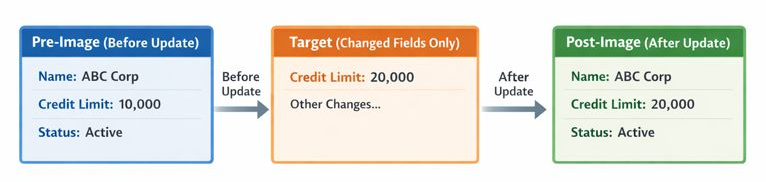
A Pre-Image represents the state of the record before the operation occurs.
A Post-Image represents the state of the record after the operation is completed.
It is important to understand that:
- Images are not live database calls
- They are provided in memory
- They are available only if explicitly registered in the plugin step
The Target entity, on the other hand, contains only the fields that were changed during the operation.
Where Pre-Image and Post-Image Are Available in the Plugin Execution Pipeline
Pre-Image and Post-Image availability depends on:
- The message (Create, Update, Delete)
- The pipeline stage (Pre-Validation, Pre-Operation, Post-Operation)
Not understanding this leads to null references and unnecessary Retrieve calls.

Key Takeaways from the Matrix
For Create messages, Pre-Image is never available because the record does not exist yet. Only Post-Image is available, and only in Post-Operation.
For Update messages, Pre-Image is available in Pre-Validation and Pre-Operation. In Post-Operation, both Pre-Image and Post-Image are available.
For Delete messages, Pre-Image is available before deletion, but Post-Image is never available since the record no longer exists.
This knowledge alone prevents many runtime errors.
If you want a deeper understanding of execution modes and rollback behavior, you may find this helpful: Sync vs Async Plugin in Dynamics 365 – Real-World Scenarios.
Why Using Pre-Image Is Better Than service.Retrieve
One of the most common anti-patterns in Dynamics 365 plugins is calling service.Retrieve just to fetch old values of the same record.
This introduces:
- An extra database call
- Performance overhead
- Possible concurrency issues
- More complex code
Pre-Image already contains the required data and is transaction-safe.
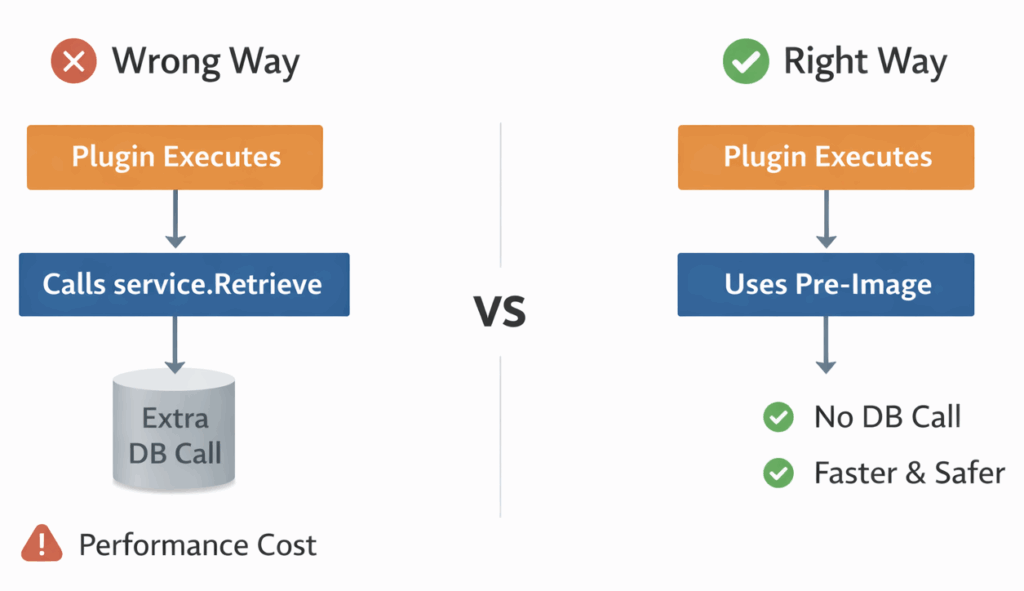
As a rule of thumb, if you need the previous value of the same entity, always check Pre-Image first.
Real-World Scenario: Detecting Field Changes Using Pre-Image
A very common requirement in real projects is to execute logic only when a specific field changes.
For example, suppose you want to trigger logic only when an Account’s credit limit changes.
The Target entity will contain only the updated credit limit, but it does not tell you what the old value was. This is where Pre-Image becomes essential.
By comparing the Pre-Image value with the Target value, you can accurately detect whether the field actually changed and avoid unnecessary execution.
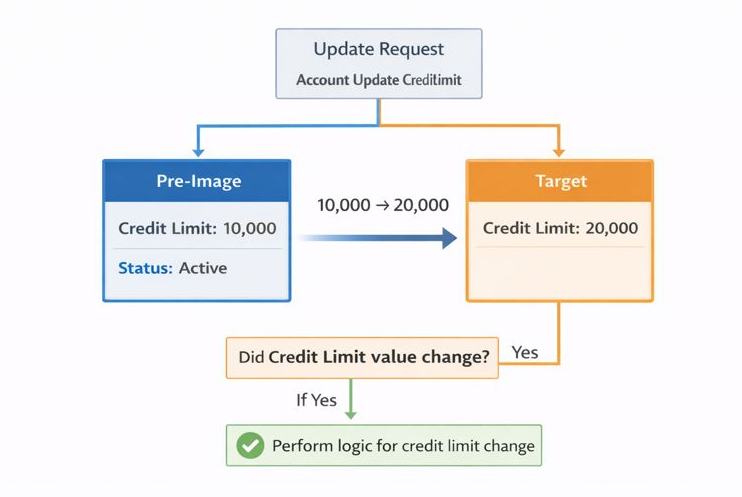
This approach avoids:
- False positives
- Repeated logic execution
- Additional Retrieve calls
Real-World Scenario: Using Post-Image After Commit
Post-Image is most useful when your logic depends on the final committed state of the record.
For example, after a Case is updated and committed, you may want to create a related Task or notify another system using the final values.
In Post-Operation plugins, the Target may not reliably contain all attributes. Post-Image ensures you work with the complete, final record state.
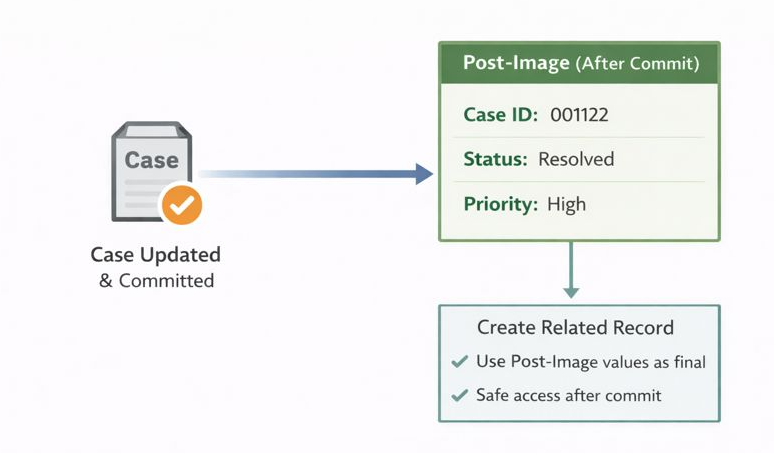
Post-Image should always be preferred over Retrieve when working with the same record after commit.
When NOT to Use Pre-Image or Post-Image
Although images are powerful, they are not available everywhere.
Pre-Image is not available for Create messages.
Post-Image is not available for Delete messages.
Images must be explicitly registered, otherwise they will always be null.
Understanding these limitations prevents incorrect assumptions in plugin design.
Common Mistakes with Pre-Image and Post-Image
Many plugin issues arise due to incorrect assumptions about images.
Common mistakes include expecting Pre-Image during Create, expecting Post-Image during Delete, or forgetting to register images in the plugin step configuration.
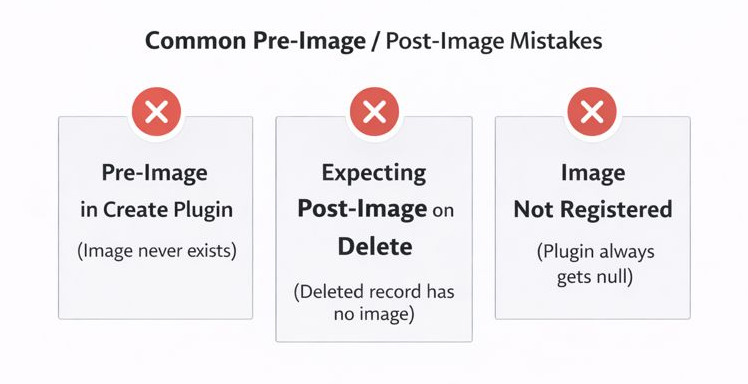
Avoiding these mistakes makes plugins far more predictable in production.
Performance Best Practices for Plugin Images
Always register only the columns you need in images.
Use clear and meaningful image names.
Prefer images over Retrieve whenever possible.
Log image values during debugging for better traceability.
Using images correctly separates average plugin implementations from production-ready ones.
Quick Check: Can You Choose the Right Image?
A plugin runs on Update and needs to compare old and new values of a field. Which image should be used?
A plugin runs after a Case is saved and needs the final state of the record. Which image fits best?
A plugin runs on Create. Is Pre-Image available?
Share your answers in the comments — I’ll reply with clarifications where needed.
Conclusion
Pre-Image and Post-Image are not optional features in Dynamics 365 plugins. They are essential tools for building efficient, reliable, and scalable solutions.
If you find yourself frequently calling service.Retrieve inside plugins, it is often a sign that images are not being used correctly. Understanding where images are available and how to use them properly leads to cleaner code and better system performance.
For official reference, Microsoft documentation explains plugin images in detail here:
https://learn.microsoft.com/en-us/power-apps/developer/data-platform/plugin-images